1. Introduction and requirements
This guide explains the procedure for enrolling your drivers in training courses on the proper use of the tachograph, organized by SIAK SISTEMI S.R.L. through the siaksistemi.com portal.
Before starting, it is advisable to have the following available:
- Partita IVA dell’azienda
- Tipologia di trasporto esercitata
- If applicable Registration number in the register of hauliers
- If applicable REN Code
- Personal data of the drivers to be registered (including tax code and document number)
2. Registration on the portal and entering company data
To register your drivers, you must first register on the portal by creating a general account for the company, choosing an email and a password.
During the purchase phase, the necessary information for the registration of the company will be requested.
The entered company data is automatically associated with the registrations of the participants at the time of order confirmation.
Any subsequent changes to the company data will be applied to future registrations.
3. Course selection and purchase
Once the main account of the company is created, it is possible to:
- Go to the Events section of the website (siaksistemi.com/events or via the button at the top of the page) and find the course you're interested in by province and date.
- LIST OF UPCOMING COURSES
- Select the course and press the button "Register participant/s" to proceed to indicate the number of participants to register
(The "+" button adds a participant, the "-" button removes them). - Complete the purchase by following the guided procedure.
If your company has arranged a dedicated course, SIAK SISTEMI will provide you with a private registration link along with instructions on how to proceed.
4. Payment
Payment must be made before the course begins, using one of the payment methods available on the platform:
- Credit card: the payment is automatically detected by the system.
- Bank Transfer: The bank account information, including the IBAN, is displayed at the time of payment. We recommend that you use only the information provided there and enter the payment description provided by the system. Confirmation of payment via bank transfer is not immediate. If our systems send automatic payment requests to your email address — even after a bank transfer has been made — please ignore them.
5. Entering driver information
After making the payment, a "Fill Data" button will be shown through which the section to enter the individual participants' information will open.

Alternatively, if you do not have all the information available at the time of purchasing the tickets, it will always be possible to enter the participants' information at a later time by accessing the "Training Courses" section in your reserved area:
Clicking on "Training Courses" will open a page with the list of all the courses for which tickets have been purchased:

Clicking on the individual course will give access to the list of tickets purchased for that specific event.
Each driver's information must be entered in full at least 48 hours before the course begins. Missing or incomplete information could prevent the proper issuance of documents and certificates.
To enter the information, it will be necessary to click on each of the empty registrations.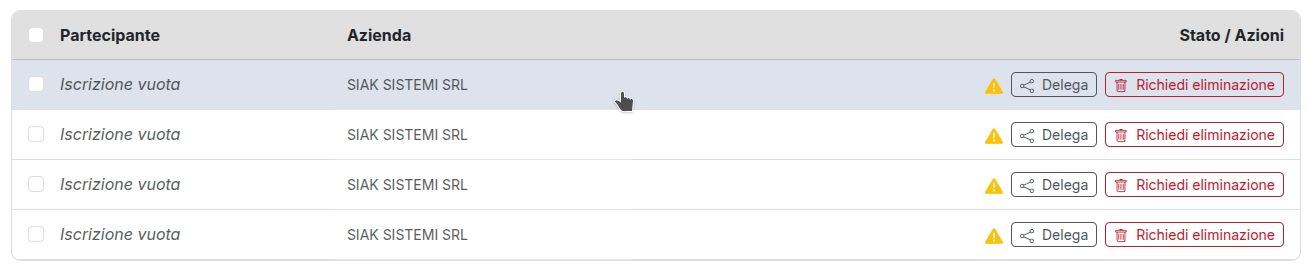
A page will open for each ticket with all the fields to fill out (first name, last name, tax code, and additional information) and the details of the company to which they belong:

The completion can be done:
- directly from the general account of the company that made the purchase;
- via delegation, sending the link for filling out the information of one or more participants to an email address of your choice (for example, to the driver themselves or to a collaborator).
The compilation page shows a progress indicator and offers support tools, including automatic calculation of the tax code.
For convenience, you can access it by clicking the following button:
7. Changes and Requests to Remove a Participant
From the course detail page, you can press the following buttons:
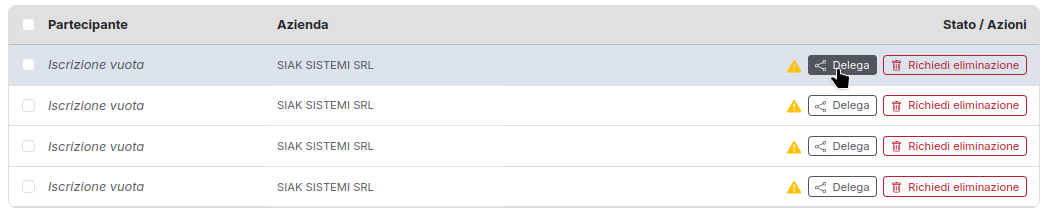
- Delegate: send a link to modify the data of a participant to a chosen email address, for example, the personal email of the individual driver who can enter their own data;
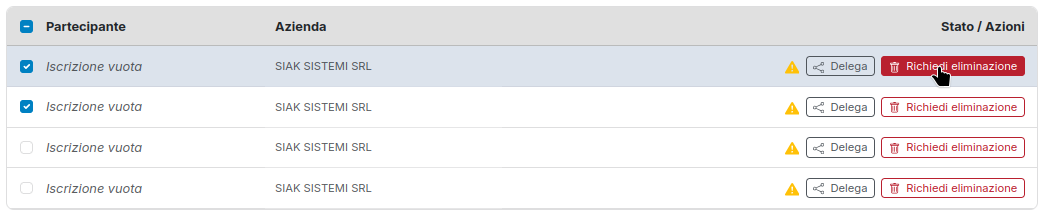
Multiple selection: select multiple participants and perform two cumulative actions:
- Modify company data: update Company Name, VAT Number, and Type of transport for the selected participants.
- Selected delegates: send the modification links of the selected participants to a chosen email address.

- Request deletion: send a request to SIAK SISTEMI to remove a participant from the registration. The request is handled by our staff.
6. Members-Only Area: Check Registration Status
Within your reserved area (siaksistemi.com/my), you can always consult your registrations by clicking the "Training Courses" button:
A page will open where you can view:
- My courses (/my/registrations): list of all courses for which the account has at least one participant, divided into future and past courses, with a visual indication of the payment status and completeness of data.
- Course details (/my/courses/<id>): elenco dei partecipanti con ricerca per nome e cognome, stato dei dati di ciascun conducente e banner di riepilogo sul completamento delle iscrizioni. Vi si accede cliccando sulla scheda del corso.
Clicking on a specific course will reopen the page showing all purchased tickets, and you'll be able to edit your registration.
8. Information About the Course Date & Location
Once the location has been determined, you will receive an email with the address, date, start time, and a link to view the location on Google Maps. We recommend that you verify that the email address you provided during registration is correct and that you check your email regularly.
9. Receipt of Certificates
Al termine del corso, gli attestati individuali vengono emessi esclusivamente per i partecipanti risultati presenti. L’azienda li riceve:
- via e-mail;
- nell’area riservata, alla pagina siaksistemi.com/documents, dove restano consultabili.
Per i partecipanti assenti non viene rilasciato alcun attestato.
10. Frequently Asked Questions and Contact Information
Can I register multiple drivers with a single purchase?
Yes, you can specify the number of participants during the purchase process and fill in each person's details later.
Can I have the drivers fill out the information themselves?
Yes, using the delegation feature described in step 5.
By when do I need to enter the drivers' information?
At least 48 hours before the course begins.
Where can I find my certificates after the course?
In the email you received and in the members-only area at siaksistemi.com/odoo/documents.
Who should I contact if I have questions or problems?
For any questions regarding Tachograph Training Courses, please email formazione@siaksistemi.com.